

Overview
Live Transfers let your assistant automatically transfer a caller to a real phone number based on a specific trigger phrase. You can create up to 50 transfer scenarios per assistant. Transfers can be reused across assistants, or kept specific to one.Transfer Mode
The Transfer Mode selector appears in the toolbar on the Transfers tab. It controls how callers reach a live transfer across your entire organization.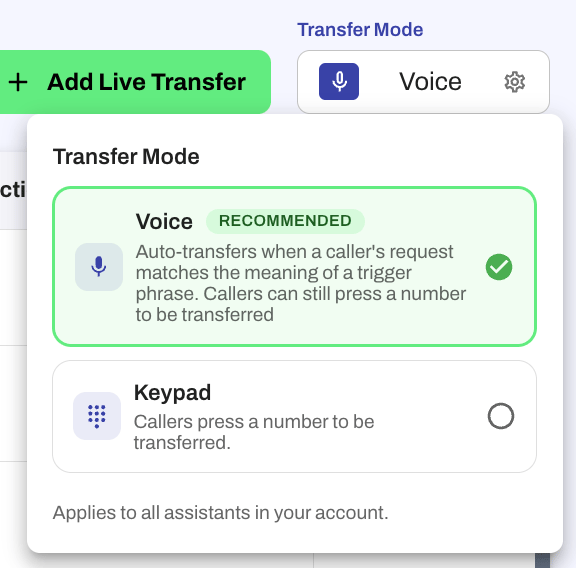
Changing Transfer Mode takes effect immediately for all assistants in your organization. A confirmation prompt appears before the change is saved.
Spoken phrase (voice mode only)
When Voice mode is active, each live transfer includes a Spoken phrase field. This is the full sentence (or phrase) the assistant says when referring to that destination during the call — not the internal name you use in the dashboard. For example, if the transfer is for your front desk, you might set the spoken phrase toI'm going to transfer you to the front desk. The assistant uses that language when handing off the call.
Voice transfers require the new phone system. If your assistant has not yet been migrated, the Voice option may not be available. Contact support if you’d like to be migrated.
Configure Live Transfers
On the Live Transfer Management page, click Add Live Transfer to get started. You’ll see two options:- Create New Live Transfer: Set up a new transfer scenario
- Use Existing Live Transfer: Select a transfer already created for another assistant
- One number for all assistants — every assistant that uses this transfer dials the same destination (the original behavior).
- Different number per assistant — keep one transfer (same trigger, spoken phrase, availability, and warm-handoff settings) and assign a distinct phone number for each assistant. This is useful when each location or brand should ring a different desk.
Fields Explained
Live Transfer Name
Add a short, descriptive name for this transfer. This is just for your reference in the dashboard.Trigger Phrase
Enter the phrase that the assistant should recognize to initiate the transfer. This might be something like:"I'd like to speak to someone""Talk to an agent""Transfer me to billing"
Trigger phrases are used by the AI to understand intent, not just exact wording.
For example, if you enter a trigger phrase like “speak to an employee,” the assistant will also recognize variations such as “talk to a human” or “get me to a person.”
For example, if you enter a trigger phrase like “speak to an employee,” the assistant will also recognize variations such as “talk to a human” or “get me to a person.”
Transfer Pattern
This is the dial pattern the assistant will use to trigger the transfer. For example:1# means the user will press 1 followed by the pound key.
Transfer Phone Number
The phone number the assistant will transfer the call to. Use a valid 10-digit number. If the transfer is used by more than one assistant, you can either enter one shared number or assign a different number per assistant. See Configure Live Transfers.Reusable
Check this box if you want to make this transfer available to other assistants.If you don’t see an existing live transfer that you already created, check to make sure you have the “reusable” checkbox turned on.
Availability
Controls when this transfer is offered to callers. Choose one of three modes:
The schedule itself is configured separately in the Availability Schedules tab and assigned per assistant. For reusable transfers, the availability mode is set once on the transfer, but each assistant evaluates it against its own assigned schedule.
If no schedule is assigned to an assistant, transfers set to During schedule or Outside schedule behave as Always on until a schedule is added.
Learn more about Availability Schedules.
Response Message
This is what the assistant will say right after the trigger phrase is detected and the transfer begins.Example:
Press 1 followed by the pound key to be transferred.
Warm Transfers
Warm transfers allow your assistant to brief the person receiving the call before or after they connect with the caller. This reduces the need for customers to repeat themselves and makes handoffs feel seamless. You can configure warm transfer behavior in the settings for each live transfer. When creating or editing a transfer, choose Warm Handoff under Transfer Type.Staff Briefing (Whisper)
Only the person receiving the call hears a message before the caller connects. The caller does not hear this. You can choose between:- Static — a fixed message that plays every time (e.g., “Transferring a caller from AI assistant”)
- AI-Generated — a prompt that tells the AI what to say, such as “Summarize the conversation quickly, in less than 2 sentences, focusing on what is important for the staff member to know to assist the customer”
Post-Connection Message
Both the caller and the receiving person hear a message after the call connects. This is useful when transparency is preferred. You can choose between:- Static — a fixed message (e.g., “You are now connected”)
- AI-Generated — a prompt for the AI to generate a contextual message
Combination
You can use a whisper and a post-connection message together — for example, an AI-generated briefing whispered privately to the staff member, followed by a static “You are now connected” message for both parties.Hold Experience
Choose what the caller hears while waiting to be connected during a warm transfer. Options include a ringing tone, hold music, or silence.Seconds Before Voicemail Starts
Optionally set a time limit for how long the transfer rings before the call goes to voicemail.Warm transfers require the new phone system. If your assistant has not yet been migrated, warm transfers will not be available. Contact support if you’d like to be migrated.
Caller ID Forwarding
How the caller’s phone number is forwarded depends on the type of transfer:
When caller ID cannot be forwarded, the receiving party will see your assistant’s phone number instead. The original caller’s number is still captured and available in your conversation history, CRM integrations, and email notifications.
Managing Transfers
Once created, your transfers will appear in the table. You can view:- Name
- Trigger Phrase
- Transfer Pattern
- Phone Number
- Reusability
- Availability — shows the transfer’s current mode:
- Always on (green chip) — offered 24/7
- During schedule (blue chip) — offered when the schedule is open
- Outside schedule (yellow chip) — offered when the schedule is closed
- Staff Briefing (active vs inactive)
- Post-Connection (active vs inactive)
- Active Agents
- Actions (edit or delete)
Pause Transfers
A Pause transfers button in the toolbar lets you temporarily disable all live transfers for one or more assistants — for example, during a holiday or an unexpected staff outage. When no assistants are paused, the button reads Pause transfers. When one or more are paused, it changes to amber and reads X assistant(s) paused · Manage so you can see the current state at a glance. Inside the modal:- Search for assistants by name
- Toggle individual assistants on or off
- Use Pause all assistants to pause or resume everyone at once — the toggle shows a count of how many are currently paused
While paused, remember to update any transfer mentions in your Core Behavior, Knowledge, and Scenarios so the assistant doesn’t refer callers to a transfer that isn’t available.