

Campaign Dashboard
After creating a campaign, you’ll land on the campaign management view. From here you can manage contacts, review performance, and adjust configuration.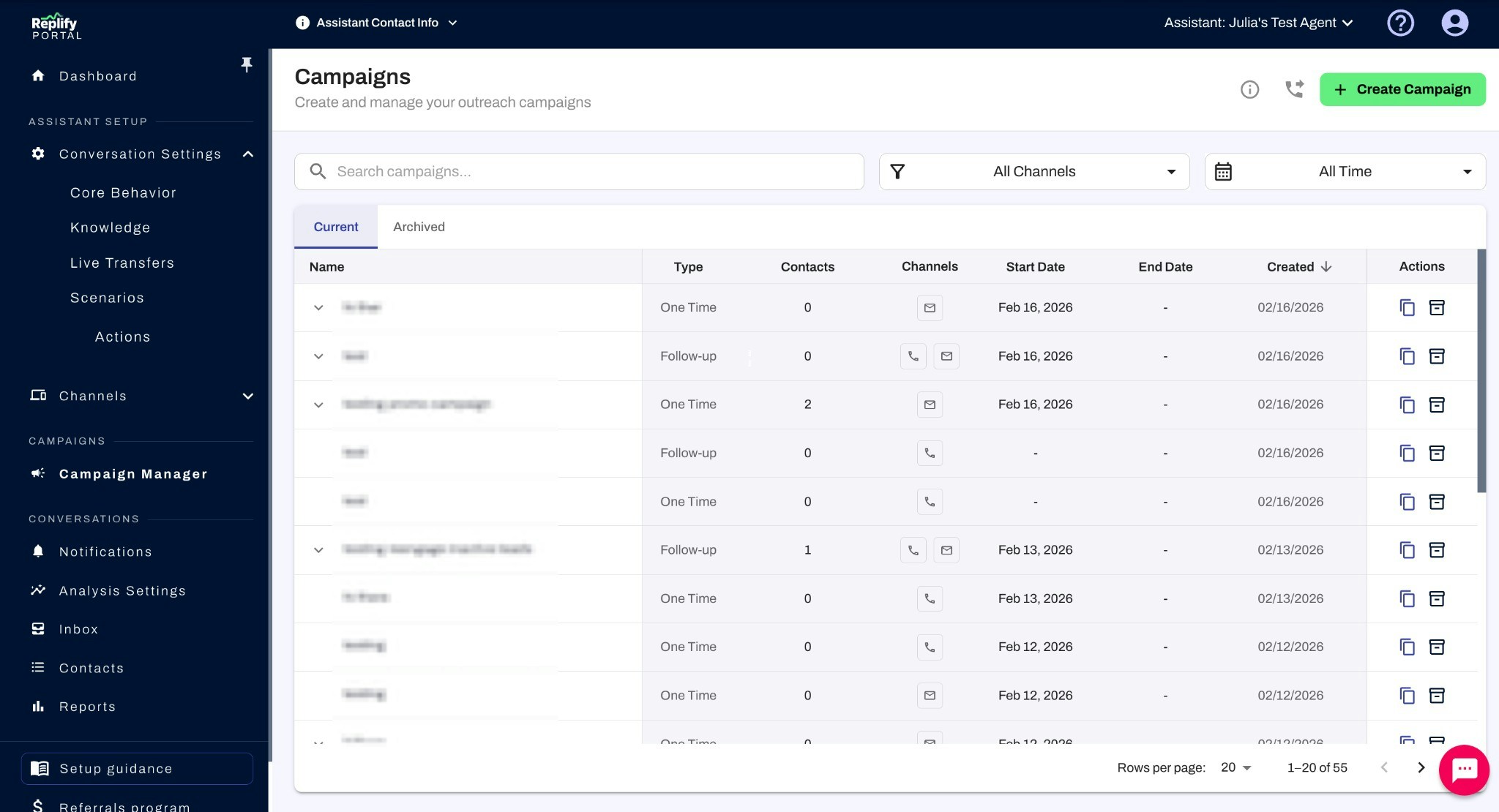
- Name — Campaign title
- Type — One Time (simple) or Follow-up (ongoing)
- Contacts — Number of contacts in the campaign
- Channels — Which communication channels are enabled (phone, email, text)
- Start Date and End Date — Campaign schedule
- Created — When the campaign was created
Campaign Statuses
Every campaign has a status that indicates where it is in its lifecycle:Campaign Lifecycle
- Go Live: From Draft, press Go Live to activate your campaign. This is a one-way action — you cannot return to Draft after going live.
- Pause: Click the Pause button to temporarily stop all outreach. You can resume at any time.
- Resume: Unpause a paused campaign to continue sending outreach where it left off.
- Archive: Move a completed or no-longer-needed campaign to the Archived tab.
- Scheduled: Outreach is sent automatically at the scheduled date and time.
- Run manually: You need to click Start all outreaches to trigger outreach. The campaign stays active between runs.
- Run automatically when contacts are added: Outreach is sent as contacts are added. If there are no contacts in the queue, the campaign is active but idle.
- Manual Review enabled: Outreach is planned by the AI but won’t be sent until you approve each individual outreach.
Managing Contacts
The Contacts tab lets you add and manage contacts in your campaign.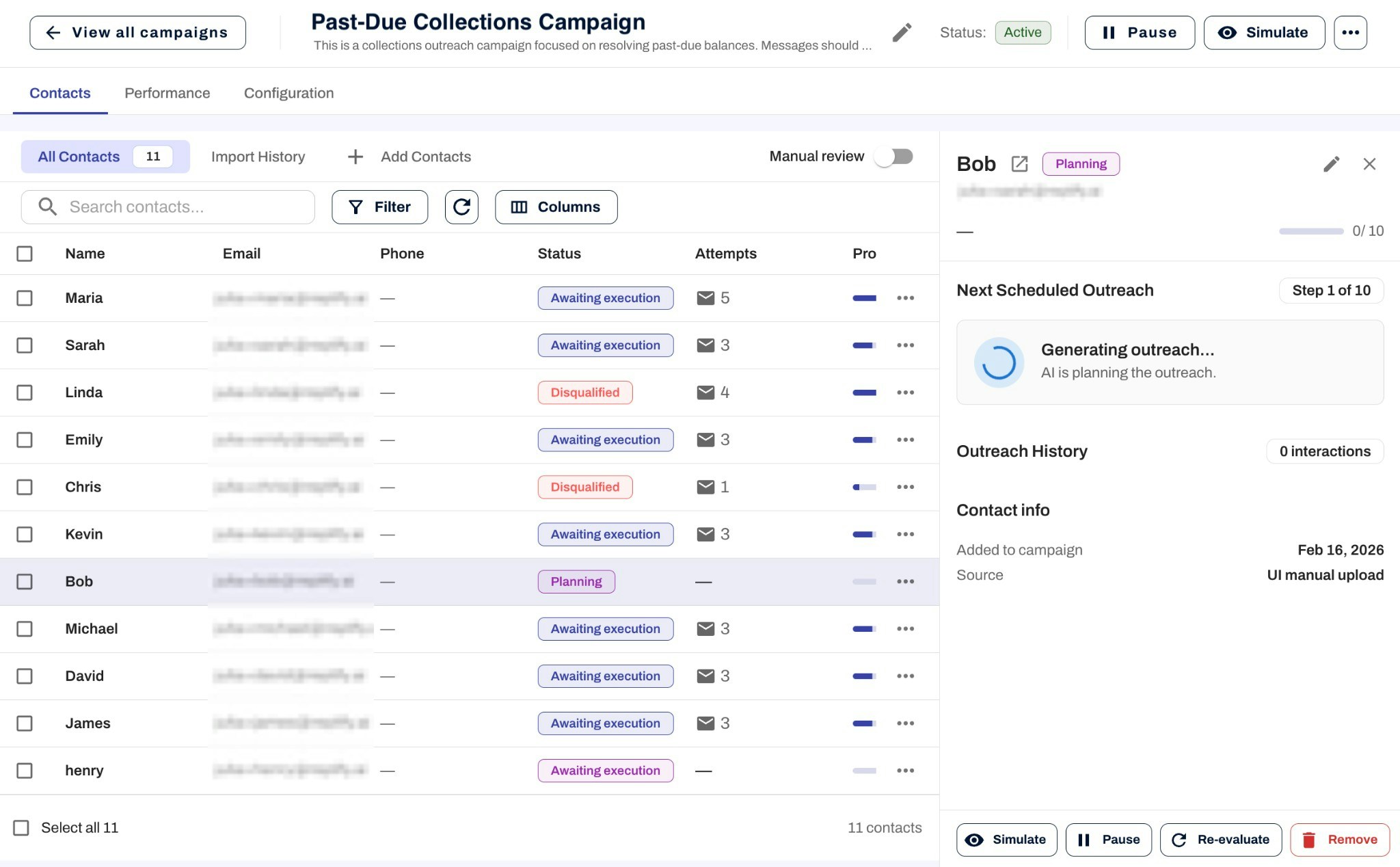
Adding Contacts
Click + Add Contacts to choose how to add contacts to your campaign. Contacts are deduplicated based on phone first and email secondarily. The Add Contacts panel has two sections: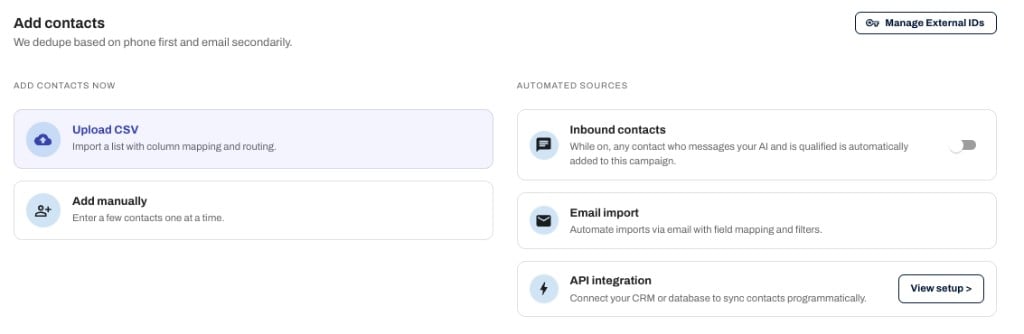
- Add contacts now — Upload CSV, Add manually
- Automated sources — Inbound contacts toggle, Email import, API integration
Import Actions
When creating an import configuration — whether via CSV upload or Email import — you choose how incoming contacts are handled with one of five import actions: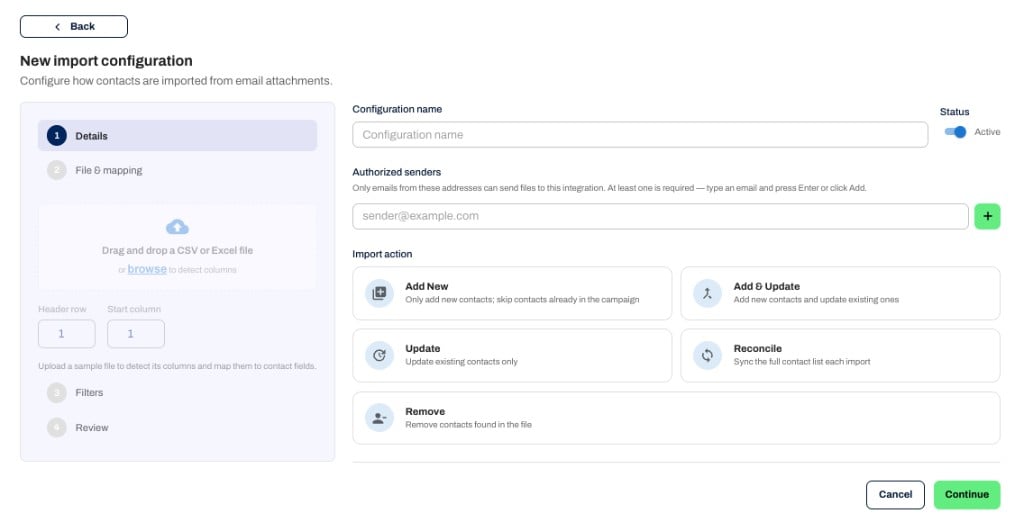
Upload CSV
Import contacts from a CSV file with custom field mapping. CSV Requirements:- First row should contain column headers
- Required fields: first name (or full name), Phone or Email
- You can map first name and last name as separate columns, or a single full-name column
- Maximum 10,000 contacts per upload
Import via Email
Send CSV or Excel files to a unique campaign email address for automatic import. This is useful for recurring imports or when you want to send contacts from another system without remapping columns each time. You can configure multiple email + attachment imports on the same campaign. For example, one report can add contacts, another can mark contacts complete, and another can remove contacts. How to use:- Click Email import under Automated sources and create a new import configuration
- Enter a Configuration name to identify this configuration
- Set Authorized senders — only emails from these addresses will be processed
- Choose an import action to control how contacts are handled
- Specify spreadsheet details: which tab to use and which row is the header
- Optionally filter rows so only matching rows are processed (for example, only import if Status =
Member) - Upload a sample CSV or Excel file and map your columns to system fields. You can map first name and last name separately, or map a full name (split on the first space)
- For organization-wide campaigns, configure Assistant Routing the same way as a direct CSV upload (Assistant routing)
- Save the configuration — future files sent to the campaign email address will automatically use these settings
- Track the status of each email in Campaign > Import History
Assistant routing (organization-wide)
When a campaign spans multiple assistants (ORG-WIDE), Add contacts shows Assistant Routing: Choose how contacts in this CSV should be assigned to assistants. You’ll see this when uploading a CSV directly and when you load a sample CSV for Import via Email. External IDs must already be configured in Manage Assistants so routing has keys and values to match. Pick one of three modes:
Programmatic uploads use the same pairing idea as
externalIdKey / externalIdValue in the Campaign Service API.
API Integration
The campaign shows an API URL in the portal for programmatic contact sync from your CRM or database. Read the Campaign Service API for authentication, request body, optionalexternalIdKey / externalIdValue, examples, and errors.
On Multi-Assistant campaigns, define external IDs per assistant in Manage Assistants before wiring up imports.
Via Zapier
If you use Zapier, you can add contacts to a campaign with the Add Person to Campaign action in thehelp247.ai Zapier app — no direct API calls required.
To set this up:
- In Zapier, add an action step and choose
help247.aias the app. - Select Add Person to Campaign as the action event.
- Connect your account using any Zapier ID for your organization. See Zapier IDs for where to find yours.
- In the Configure step, fill in the required fields: Campaign ID, Account ID, and First Name, plus at least one of email or phone.
- Optionally map Last Name, email, phone, External ID Key, and External ID Value for deduplication or assistant routing.
Inbound Contacts
Automatically add new contacts that call or message your AI assistant if they match your contact eligibility criteria. Toggle Add new inbound contacts to enable.Add Contacts Manually
Enter contact details by hand. Fill in the first name, last name, email, and phone number. You can also add custom properties using + Add Custom Property.Contact Statuses
Each contact in a campaign has a status that indicates their current state:When Manual Review is enabled, contacts will show Awaiting approval instead of Awaiting execution. This means the outreach has been planned and is waiting for your approval before being sent.
Contact Details
Click on any contact to open the detail panel, which shows:- Contact information (name, email, phone)
- Current status and number of attempts
- Progress through the campaign (e.g., 4/10 attempts)
- Response history
- Next Scheduled Outreach — Preview of the next message, including channel, date/time, subject, and body
- Outreach History — A log of all past outreach attempts and their outcomes
Manual Review
If you want to approve each outreach before it’s sent, toggle Manual Review on in the campaign view.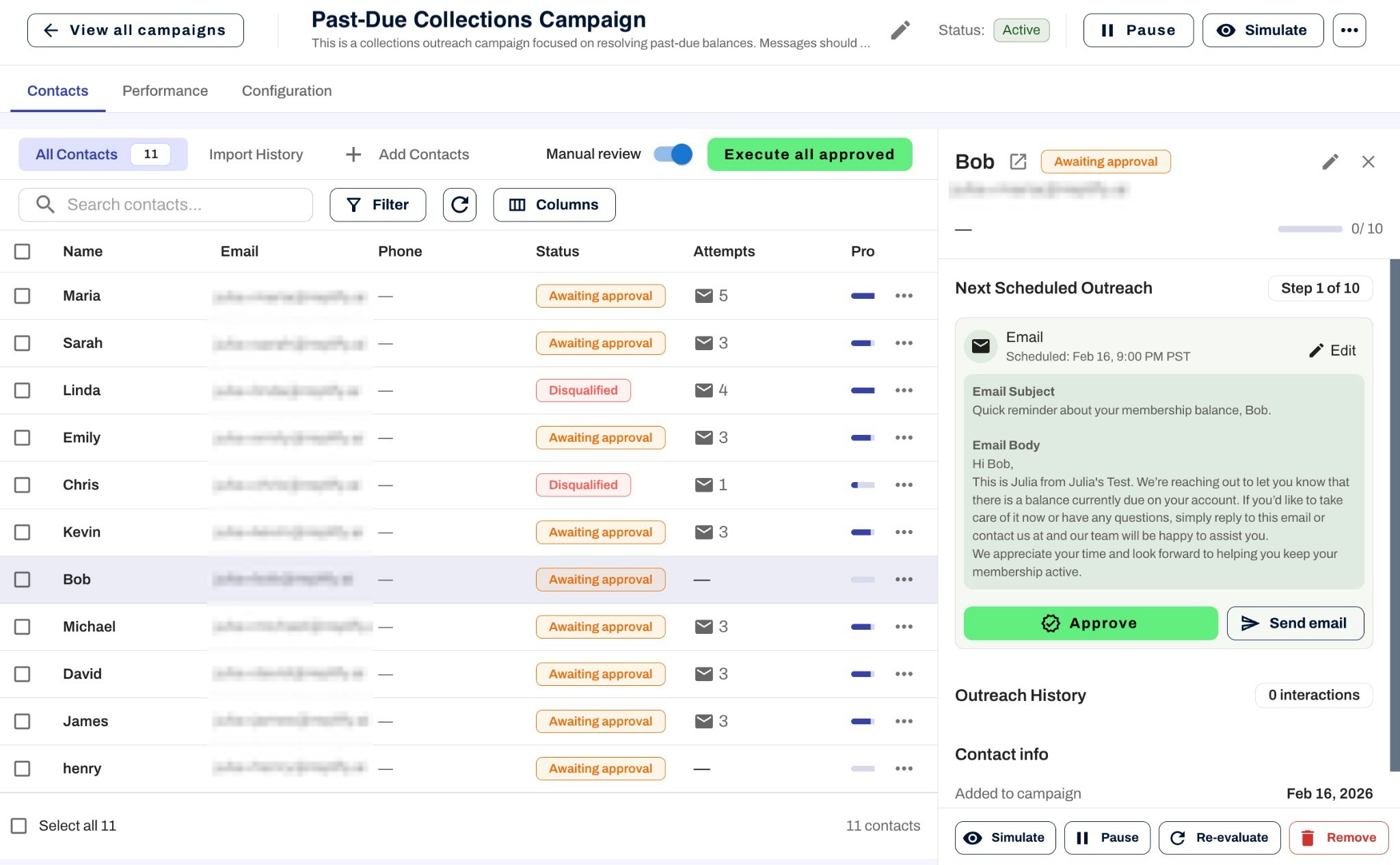
- Contact statuses will show Awaiting approval instead of Awaiting execution
- Click on a contact to preview the outreach the AI has generated
- Choose Approve to confirm the outreach, or Edit to make changes before sending
- Use Execute all approved to send all approved outreaches at once
Manual Review is useful when you want to verify the AI’s messaging before it reaches your contacts, especially during the early stages of a campaign.
Performance & Reports
The Performance tab provides analytics and insights about your campaign, including:- Outreach statistics
- Contact engagement metrics
- Response rates by channel
Campaign Configuration
The Edit tab on the campaign management page is where you review and change campaign settings. Draft and live campaigns both use this tab, so editing stays with the rest of campaign management rather than a separate screen.Editing a live campaign
You can edit a campaign after it is live. Open the Edit tab on the campaign management page, make your changes, and save. Edits apply after any currently planned outreaches go out. Saving does not re-evaluate the whole contact list or rewrite outreaches that are already queued. You still cannot return an active campaign to Draft status.If you need outreach to stop immediately, pause the campaign first, then edit.