

Overview
Campaigns let you reach out to your current or past clients through automated outreach. When creating a campaign, you can start with a pre-built template or build your own from scratch. There are two types of campaigns:Simple Outreach
One-time blasts for announcements and alerts. Each contact is reached once through a single channel (phone, email, or text).
Ongoing Sequences
Automated multi-step flows for nurture and growth. Supports multiple channels, multiple outreach attempts, and scheduled follow-ups over days or weeks.
Campaigns are not meant for cold calling or unsolicited outreach. Only reach out to contacts who have opted in to receive communications from your business.
Simple vs. Ongoing: Which Should I Use?
Pre-requisites
- Plus Tier Required: You must be on the Plus tier to use campaigns. Visit our or contact to upgrade.
- Channel Setup: Each channel you want to use in a campaign must be enabled on your account. If a channel appears disabled when creating a campaign, hover over it to see why. Contact for help enabling channels.
Choosing a Template
To get started, navigate to and click + Create Campaign. You’ll see the template selection screen where you can choose between Simple Outreach and Ongoing Sequences.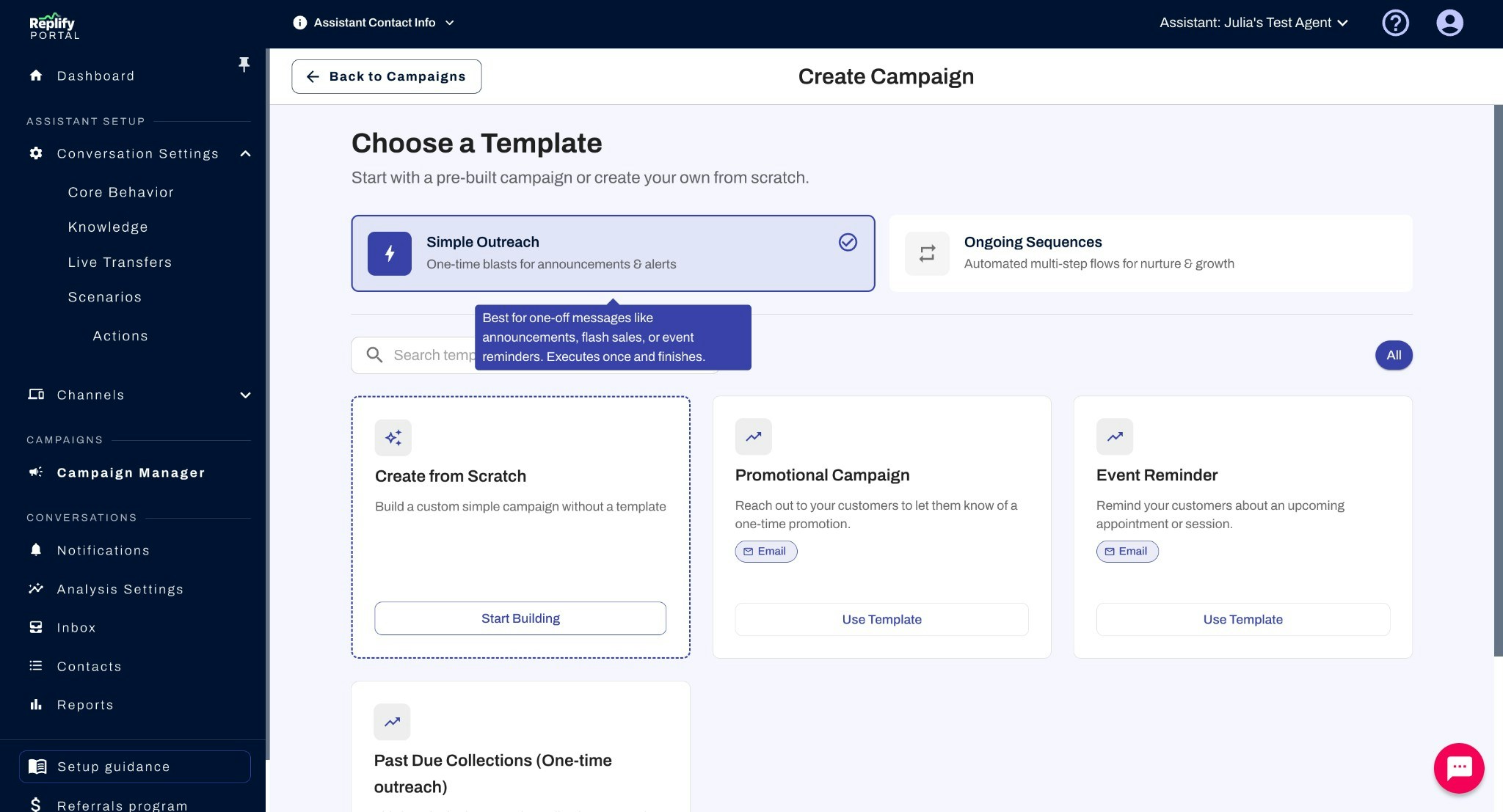
Channel Requirements
Before selecting a template, make sure the channels listed on the template are enabled on your account. If you select a template that uses a channel you haven’t set up, you’ll receive an error asking you to enable that channel first. For example, if a template uses Phone and Email, both channels must be configured in your account settings before you can use that template.Using a Template
When you select a pre-built template and click Use Template, the campaign creation wizard will open with fields pre-filled based on the template’s recommended settings. You’ll see a “Template Defaults Applied” banner at the top of each step reminding you to review and customize the pre-filled values. We strongly recommend testing your campaign with a contact using the Simulate feature before going live. This ensures the AI’s messaging sounds right and that all template values have been properly customized.Tips for Customizing Templates
- Start with the closest match — Pick the template that’s closest to your use case and tweak from there, rather than building from scratch.
- Review Additional Instructions carefully — Templates include detailed AI instructions for tone, messaging style, and content. Update these to reflect your specific campaign (e.g., the name of your promotion, relevant dates, or specific offers).
- Check the channel — If you’d prefer a different channel than the template default, you can change it in the Delivery & Timing step.
- Test before going live — After you save, run Simulate campaign from the campaign edit or management view so you hear or read how the AI handles a contact. Adjust instructions if the messaging doesn’t sound right.
- Don’t skip Campaign Knowledge — If contacts might ask questions during a call or reply to an email, add relevant details (promo codes, event info, policies) to Campaign Knowledge so the AI can answer accurately.
Creating from Scratch
If none of the pre-built templates fit your needs, select Create from Scratch and click Start Building. All fields will start blank and you’ll configure everything yourself during the campaign creation wizard.Simple Outreach Templates
Simple outreach templates are designed for one-time campaigns where each contact is reached once through a single channel.Example Use Cases
Promotional Campaign- A gym sending an email about a limited-time 50% off membership deal
- A restaurant announcing a new seasonal menu to past customers
- A salon promoting a holiday gift card special
- A yoga studio reminding members about an upcoming workshop
- A dental office sending appointment reminders for the week ahead
- A tutoring center notifying parents about an open house event
- A fitness studio notifying members about overdue monthly payments
- A service provider sending a one-time reminder about an unpaid invoice
- A membership-based business alerting customers about expiring payment methods
Ongoing Sequence Templates
Ongoing sequence templates are designed for multi-step campaigns with scheduled follow-ups across one or more channels.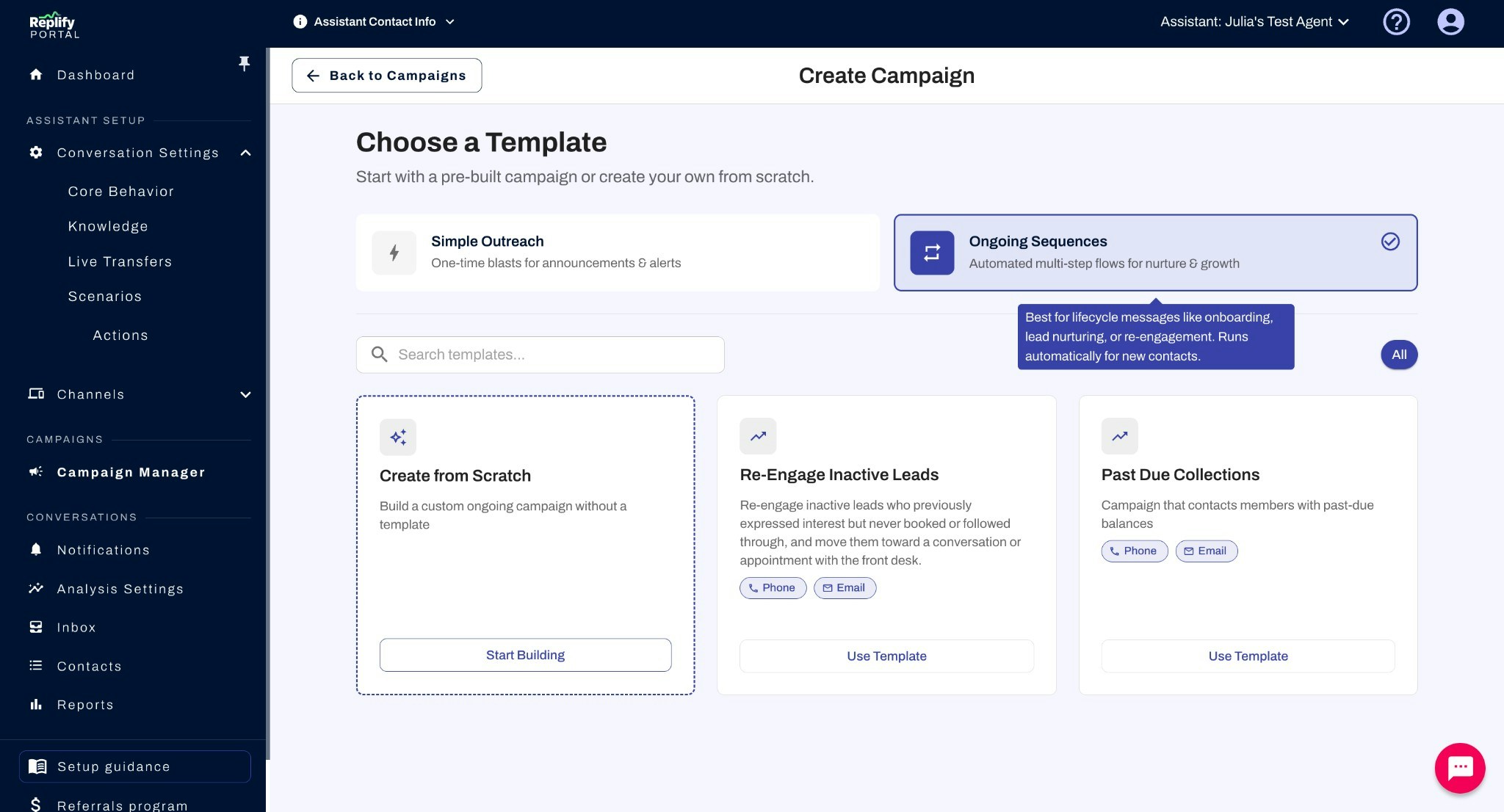
Example Use Cases
Re-Engage Inactive Leads- A real estate agency following up with leads who attended an open house but never scheduled a viewing
- A fitness studio reaching out to trial members who didn’t convert to a full membership
- A consulting firm re-engaging prospects who expressed interest months ago but went quiet
- A gym running a multi-week follow-up campaign for members with overdue balances, starting with an email and escalating to a phone call
- A property management company sending periodic reminders about past-due rent with increasing urgency
- A subscription service reaching out to customers with failed payments over a 2-week period via email and phone