> ## Documentation Index
> Fetch the complete documentation index at: https://docs.replify.ai/llms.txt
> Use this file to discover all available pages before exploring further.
# Campaign Templates
> Choose from pre-built campaign templates or create your own from scratch
export const SupportEmail = () => {
return help@replify.ai;
};
export const SalesEmail = () => {
return sales@replify.ai;
};
export const BaseUrl = ({path = '', children}) => {
const baseUrl = 'https://app.replify.ai';
const fullUrl = path ? `${baseUrl}${path.startsWith('/') ? path : `/${path}`}` : baseUrl;
if (children) {
return {children};
}
return fullUrl;
};
## Overview
Campaigns let you reach out to your current or past clients through automated outreach. When creating a campaign, you can start with a pre-built template or build your own from scratch.
There are two types of campaigns:
One-time blasts for announcements and alerts. Each contact is reached once through a single channel (phone, email, or text).
Automated multi-step flows for nurture and growth. Supports multiple channels, multiple outreach attempts, and scheduled follow-ups over days or weeks.
Campaigns are not meant for cold calling or unsolicited outreach. Only reach out to contacts who have opted in to receive communications from your business.
### Simple vs. Ongoing: Which Should I Use?
| | Simple Outreach | Ongoing Sequences |
| ------------------------ | -------------------------------------------------- | ---------------------------------------------------------------- |
| **Best for** | One-time announcements, reminders, or blasts | Nurture flows, follow-up sequences, re-engagement |
| **Channels** | One channel per campaign (phone, email, or text) | One or more channels (phone, email, and/or text) |
| **Outreach per contact** | Each contact is reached once | Multiple outreach attempts with configurable frequency |
| **Scheduling** | Scheduled, manual, or auto when contacts are added | Start/end dates with automated follow-up cadence |
| **Example** | "Send a promo email to all customers this Friday" | "Follow up with inactive leads over 3 weeks via phone and email" |
### Pre-requisites
1. **Plus Tier Required**: You must be on the Plus tier to use campaigns. Visit our Pricing Page or contact to upgrade.
2. **Channel Setup**: Each channel you want to use in a campaign must be enabled on your account. If a channel appears disabled when creating a campaign, hover over it to see why. Contact for help enabling channels.
## Choosing a Template
To get started, navigate to Campaign Manager and click **+ Create Campaign**. You'll see the template selection screen where you can choose between Simple Outreach and Ongoing Sequences.
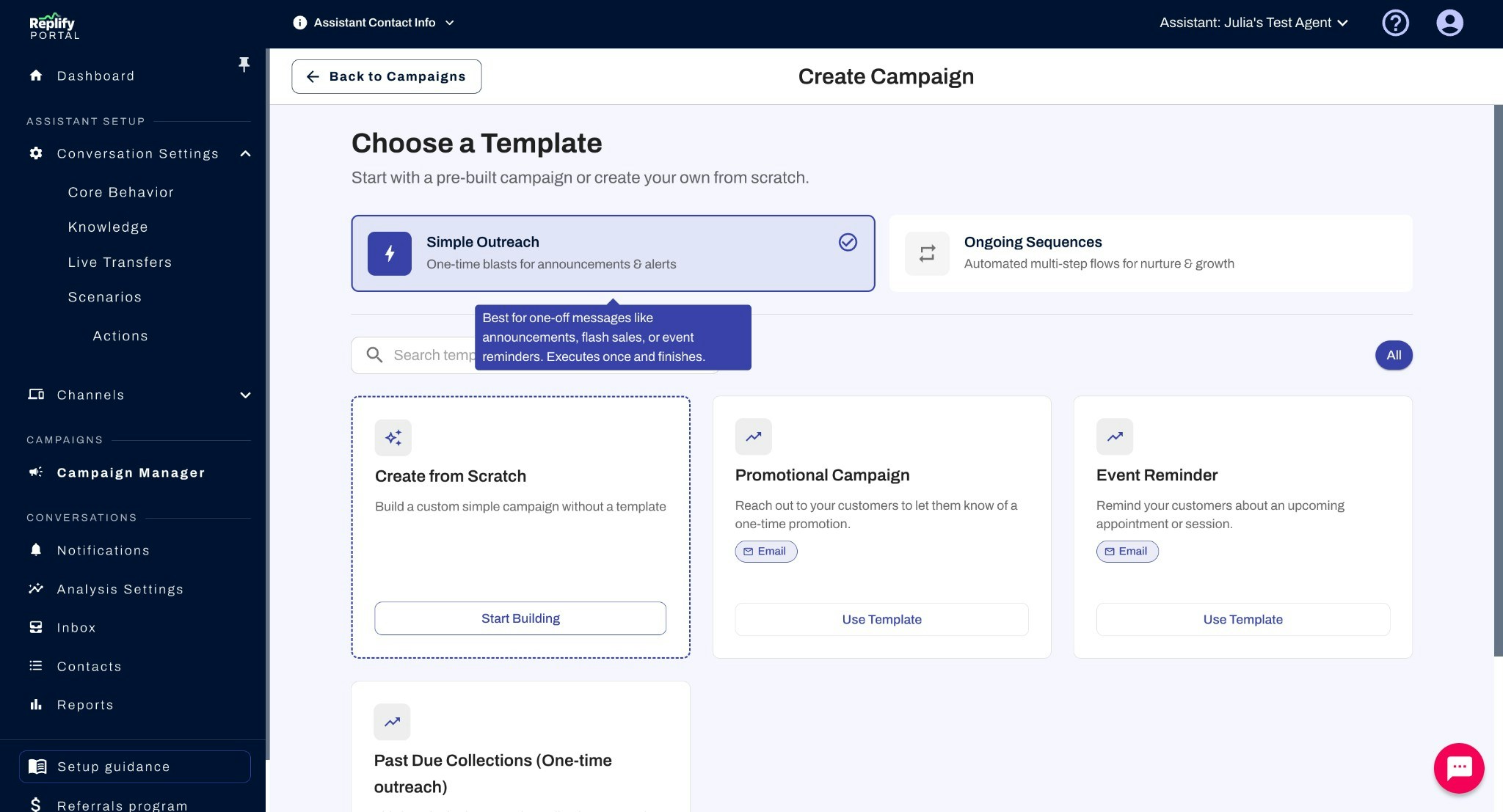 Each template card shows the template name, a short description, and which channels it uses (e.g., Email, Phone). You can also search for templates using the search bar.
### Channel Requirements
Before selecting a template, make sure the channels listed on the template are enabled on your account. If you select a template that uses a channel you haven't set up, you'll receive an error asking you to enable that channel first.
For example, if a template uses Phone and Email, both channels must be configured in your account settings before you can use that template.
### Using a Template
When you select a pre-built template and click **Use Template**, the campaign creation wizard will open with fields pre-filled based on the template's recommended settings. You'll see a **"Template Defaults Applied"** banner at the top of each step reminding you to review and customize the pre-filled values.
**Review all template defaults before going live.** Some values will automatically fill in with your business name, but others need your input to be accurate — for example, specific promotion details, event dates, or messaging that is unique to your campaign. Always review the pre-filled Additional Instructions and any messaging fields to make sure they reflect your specific use case.
**We strongly recommend testing your campaign with a contact using the Simulate feature before going live.** This ensures the AI's messaging sounds right and that all template values have been properly customized.
### Tips for Customizing Templates
* **Start with the closest match** — Pick the template that's closest to your use case and tweak from there, rather than building from scratch.
* **Review Additional Instructions carefully** — Templates include detailed AI instructions for tone, messaging style, and content. Update these to reflect your specific campaign (e.g., the name of your promotion, relevant dates, or specific offers).
* **Check the channel** — If you'd prefer a different channel than the template default, you can change it in the Delivery & Timing step.
* **Test before going live** — After you save, run **Simulate campaign** from the campaign edit or management view so you hear or read how the AI handles a contact. Adjust instructions if the messaging doesn't sound right.
* **Don't skip Campaign Knowledge** — If contacts might ask questions during a call or reply to an email, add relevant details (promo codes, event info, policies) to Campaign Knowledge so the AI can answer accurately.
### Creating from Scratch
If none of the pre-built templates fit your needs, select **Create from Scratch** and click **Start Building**. All fields will start blank and you'll configure everything yourself during the campaign creation wizard.
## Simple Outreach Templates
Simple outreach templates are designed for one-time campaigns where each contact is reached once through a single channel.
| Template | Description | Channel |
| ------------------------ | ------------------------------------------------------------------------------------- | ------- |
| **Promotional Campaign** | Reach out to your customers to let them know of a one-time promotion. | Email |
| **Event Reminder** | Remind your customers about an upcoming appointment or session. | Email |
| **Past Due Collections** | A one-time past due collections campaign to notify customers of outstanding balances. | Email |
### Example Use Cases
**Promotional Campaign**
* A gym sending an email about a limited-time 50% off membership deal
* A restaurant announcing a new seasonal menu to past customers
* A salon promoting a holiday gift card special
**Event Reminder**
* A yoga studio reminding members about an upcoming workshop
* A dental office sending appointment reminders for the week ahead
* A tutoring center notifying parents about an open house event
**Past Due Collections**
* A fitness studio notifying members about overdue monthly payments
* A service provider sending a one-time reminder about an unpaid invoice
* A membership-based business alerting customers about expiring payment methods
## Ongoing Sequence Templates
Ongoing sequence templates are designed for multi-step campaigns with scheduled follow-ups across one or more channels.
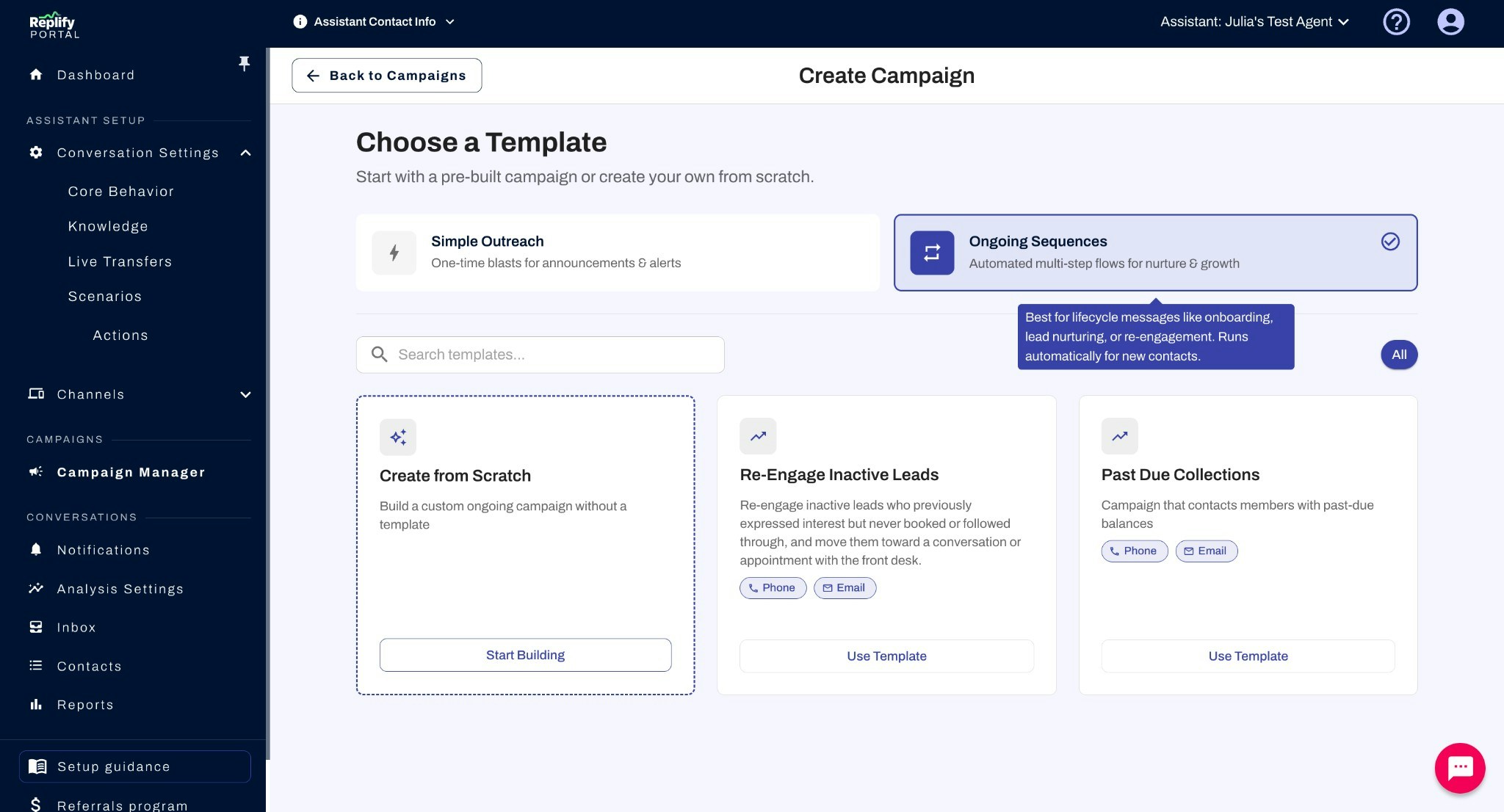
Each template card shows the template name, a short description, and which channels it uses (e.g., Email, Phone). You can also search for templates using the search bar.
### Channel Requirements
Before selecting a template, make sure the channels listed on the template are enabled on your account. If you select a template that uses a channel you haven't set up, you'll receive an error asking you to enable that channel first.
For example, if a template uses Phone and Email, both channels must be configured in your account settings before you can use that template.
### Using a Template
When you select a pre-built template and click **Use Template**, the campaign creation wizard will open with fields pre-filled based on the template's recommended settings. You'll see a **"Template Defaults Applied"** banner at the top of each step reminding you to review and customize the pre-filled values.
**Review all template defaults before going live.** Some values will automatically fill in with your business name, but others need your input to be accurate — for example, specific promotion details, event dates, or messaging that is unique to your campaign. Always review the pre-filled Additional Instructions and any messaging fields to make sure they reflect your specific use case.
**We strongly recommend testing your campaign with a contact using the Simulate feature before going live.** This ensures the AI's messaging sounds right and that all template values have been properly customized.
### Tips for Customizing Templates
* **Start with the closest match** — Pick the template that's closest to your use case and tweak from there, rather than building from scratch.
* **Review Additional Instructions carefully** — Templates include detailed AI instructions for tone, messaging style, and content. Update these to reflect your specific campaign (e.g., the name of your promotion, relevant dates, or specific offers).
* **Check the channel** — If you'd prefer a different channel than the template default, you can change it in the Delivery & Timing step.
* **Test before going live** — After you save, run **Simulate campaign** from the campaign edit or management view so you hear or read how the AI handles a contact. Adjust instructions if the messaging doesn't sound right.
* **Don't skip Campaign Knowledge** — If contacts might ask questions during a call or reply to an email, add relevant details (promo codes, event info, policies) to Campaign Knowledge so the AI can answer accurately.
### Creating from Scratch
If none of the pre-built templates fit your needs, select **Create from Scratch** and click **Start Building**. All fields will start blank and you'll configure everything yourself during the campaign creation wizard.
## Simple Outreach Templates
Simple outreach templates are designed for one-time campaigns where each contact is reached once through a single channel.
| Template | Description | Channel |
| ------------------------ | ------------------------------------------------------------------------------------- | ------- |
| **Promotional Campaign** | Reach out to your customers to let them know of a one-time promotion. | Email |
| **Event Reminder** | Remind your customers about an upcoming appointment or session. | Email |
| **Past Due Collections** | A one-time past due collections campaign to notify customers of outstanding balances. | Email |
### Example Use Cases
**Promotional Campaign**
* A gym sending an email about a limited-time 50% off membership deal
* A restaurant announcing a new seasonal menu to past customers
* A salon promoting a holiday gift card special
**Event Reminder**
* A yoga studio reminding members about an upcoming workshop
* A dental office sending appointment reminders for the week ahead
* A tutoring center notifying parents about an open house event
**Past Due Collections**
* A fitness studio notifying members about overdue monthly payments
* A service provider sending a one-time reminder about an unpaid invoice
* A membership-based business alerting customers about expiring payment methods
## Ongoing Sequence Templates
Ongoing sequence templates are designed for multi-step campaigns with scheduled follow-ups across one or more channels.
 | Template | Description | Channels |
| ---------------------------- | ------------------------------------------------------------------------------------------------------------------------------------------------------------------------ | ------------ |
| **Re-Engage Inactive Leads** | Re-engage inactive leads who previously expressed interest but never booked or followed through, and move them toward a conversation or appointment with the front desk. | Phone, Email |
| **Past Due Collections** | Campaign that contacts members with past-due balances. | Phone, Email |
### Example Use Cases
**Re-Engage Inactive Leads**
* A real estate agency following up with leads who attended an open house but never scheduled a viewing
* A fitness studio reaching out to trial members who didn't convert to a full membership
* A consulting firm re-engaging prospects who expressed interest months ago but went quiet
**Past Due Collections (Ongoing)**
* A gym running a multi-week follow-up campaign for members with overdue balances, starting with an email and escalating to a phone call
* A property management company sending periodic reminders about past-due rent with increasing urgency
* A subscription service reaching out to customers with failed payments over a 2-week period via email and phone
## Next Steps
Once you've chosen a template (or decided to create from scratch), head to [Creating a Campaign](/campaigns/creating-a-campaign) for a step-by-step walkthrough of the setup process.
| Template | Description | Channels |
| ---------------------------- | ------------------------------------------------------------------------------------------------------------------------------------------------------------------------ | ------------ |
| **Re-Engage Inactive Leads** | Re-engage inactive leads who previously expressed interest but never booked or followed through, and move them toward a conversation or appointment with the front desk. | Phone, Email |
| **Past Due Collections** | Campaign that contacts members with past-due balances. | Phone, Email |
### Example Use Cases
**Re-Engage Inactive Leads**
* A real estate agency following up with leads who attended an open house but never scheduled a viewing
* A fitness studio reaching out to trial members who didn't convert to a full membership
* A consulting firm re-engaging prospects who expressed interest months ago but went quiet
**Past Due Collections (Ongoing)**
* A gym running a multi-week follow-up campaign for members with overdue balances, starting with an email and escalating to a phone call
* A property management company sending periodic reminders about past-due rent with increasing urgency
* A subscription service reaching out to customers with failed payments over a 2-week period via email and phone
## Next Steps
Once you've chosen a template (or decided to create from scratch), head to [Creating a Campaign](/campaigns/creating-a-campaign) for a step-by-step walkthrough of the setup process.