> ## Documentation Index
> Fetch the complete documentation index at: https://docs.replify.ai/llms.txt
> Use this file to discover all available pages before exploring further.
# Chatbot
> Configure your chatbot's appearance, behavior, and how it's embedded on your website
export const BaseUrl = ({path = '', children}) => {
const baseUrl = 'https://app.replify.ai';
const fullUrl = path ? `${baseUrl}${path.startsWith('/') ? path : `/${path}`}` : baseUrl;
if (children) {
return {children};
}
return fullUrl;
};
## Customize Your Chatbot
* **Choose a layout**: Pick between Link View (with quick links) or Simple (more conversational).
* **Select an accent color** to match your brand.
* **Write a custom greeting** that your assistant will say when a conversation starts.
* **Upload a profile picture** to personalize your chatbot.
* **Show or hide branding (basic & plus plan)** like our avatar or our logo.
You’ll see a live preview on the right as you make changes.
## Share Your Chatbot
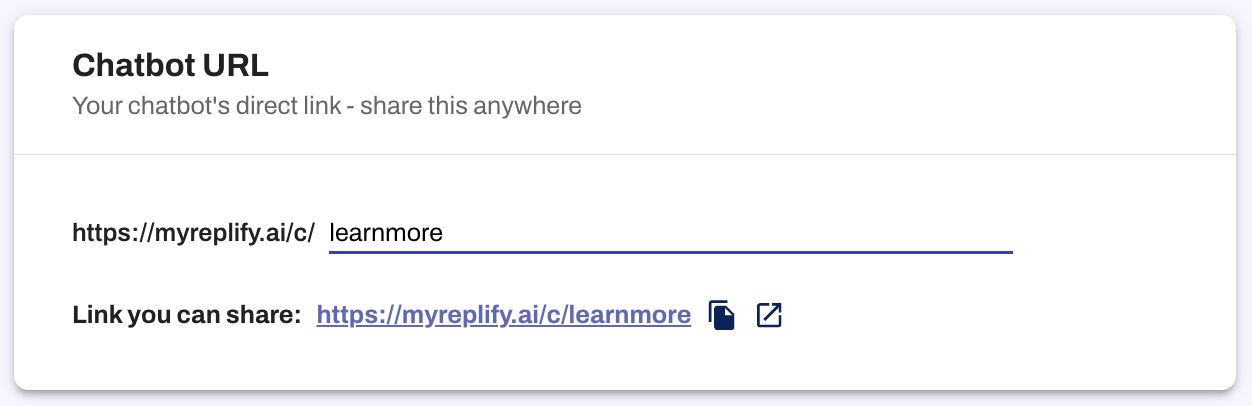
Create a short, personalized link you can share with customers. Just type your preferred URL ending and copy the link provided.
 ## Embed on Your Website
You can also embed the chatbot directly into your website:
1. Choose your icon colors and shape.
2. Copy the embed code at the bottom of the page.
3. Paste it into your site's HTML.
Any saved updates you make on the chatbot settings page will be automatically applied to your embedded chatbot.
## Auto-Open Chatbot
Enable the auto-open feature to automatically display a small message after a set timeframe to encourage users to engage with the chat.
### Configure Auto-Open
1. **Toggle Auto-open chatbot**: Enable this feature to automatically open a small message after a set timeframe.
2. **Set Popup Message**: Enter the message that will appear when the chatbot alert auto-opens (maximum 400 characters). This is a required field.
3. **Auto-open after (seconds)**: Set how many seconds to wait before the popup appears. Set to 0 to open as soon as the chatbot loads.
### Popup Icon
Customize the icon that appears in the popup:
* Click the edit button to upload a custom icon
* The default icon is a waving hand
* Your custom icon will be displayed in a circular format
### Auto-Close Message
Automatically close the small message after a set timeframe:
1. **Toggle Auto-close message after specified time**: Enable this feature to automatically close the popup.
2. **Auto-close after (seconds)**: Set the time in seconds to automatically close the message. This is a required field when auto-close is enabled.
### Show on Devices
Choose which devices should display the popup message:
* Select from the dropdown menu to specify desktop, mobile, or all devices
* This allows you to control where the auto-open feature appears
## Want a Custom Icon?
You can customize both icons on the embedded chatbot:
### Embed Icon
Use your own image for the embedded chatbot icon. Just add this line to the embed code (under `window.agentId`) and replace the URL with your image:
```javascript theme={null}
window.customImage = 'https://yourdomain.com/your-image.png';
```
### Popup Icon
For the auto-open popup feature, you can upload a custom popup icon directly in the chatbot settings page. Click the edit button on the Popup Icon section to upload your custom image. The default is a waving hand icon.
## Embed on Your Website
You can also embed the chatbot directly into your website:
1. Choose your icon colors and shape.
2. Copy the embed code at the bottom of the page.
3. Paste it into your site's HTML.
Any saved updates you make on the chatbot settings page will be automatically applied to your embedded chatbot.
## Auto-Open Chatbot
Enable the auto-open feature to automatically display a small message after a set timeframe to encourage users to engage with the chat.
### Configure Auto-Open
1. **Toggle Auto-open chatbot**: Enable this feature to automatically open a small message after a set timeframe.
2. **Set Popup Message**: Enter the message that will appear when the chatbot alert auto-opens (maximum 400 characters). This is a required field.
3. **Auto-open after (seconds)**: Set how many seconds to wait before the popup appears. Set to 0 to open as soon as the chatbot loads.
### Popup Icon
Customize the icon that appears in the popup:
* Click the edit button to upload a custom icon
* The default icon is a waving hand
* Your custom icon will be displayed in a circular format
### Auto-Close Message
Automatically close the small message after a set timeframe:
1. **Toggle Auto-close message after specified time**: Enable this feature to automatically close the popup.
2. **Auto-close after (seconds)**: Set the time in seconds to automatically close the message. This is a required field when auto-close is enabled.
### Show on Devices
Choose which devices should display the popup message:
* Select from the dropdown menu to specify desktop, mobile, or all devices
* This allows you to control where the auto-open feature appears
## Want a Custom Icon?
You can customize both icons on the embedded chatbot:
### Embed Icon
Use your own image for the embedded chatbot icon. Just add this line to the embed code (under `window.agentId`) and replace the URL with your image:
```javascript theme={null}
window.customImage = 'https://yourdomain.com/your-image.png';
```
### Popup Icon
For the auto-open popup feature, you can upload a custom popup icon directly in the chatbot settings page. Click the edit button on the Popup Icon section to upload your custom image. The default is a waving hand icon.